Getting started with Zoho Mail after moving from Outlook or Gmail
This guide helps you get the most out of Zoho Mail after moving from another email provider, such as Office 365 Outlook or Gmail. It covers the Zoho Mail interface, customisation, filters and tags, composing email, calendar, productivity tools, integrations, and sharing and delegation.
Applies to: Zoho Mail, Zoho Trident – All clients
This isn't a full user guide. For that, see the Zoho Mail help.
1. Your new user experience
Zoho Mail has a clean interface that puts your communications front and centre.
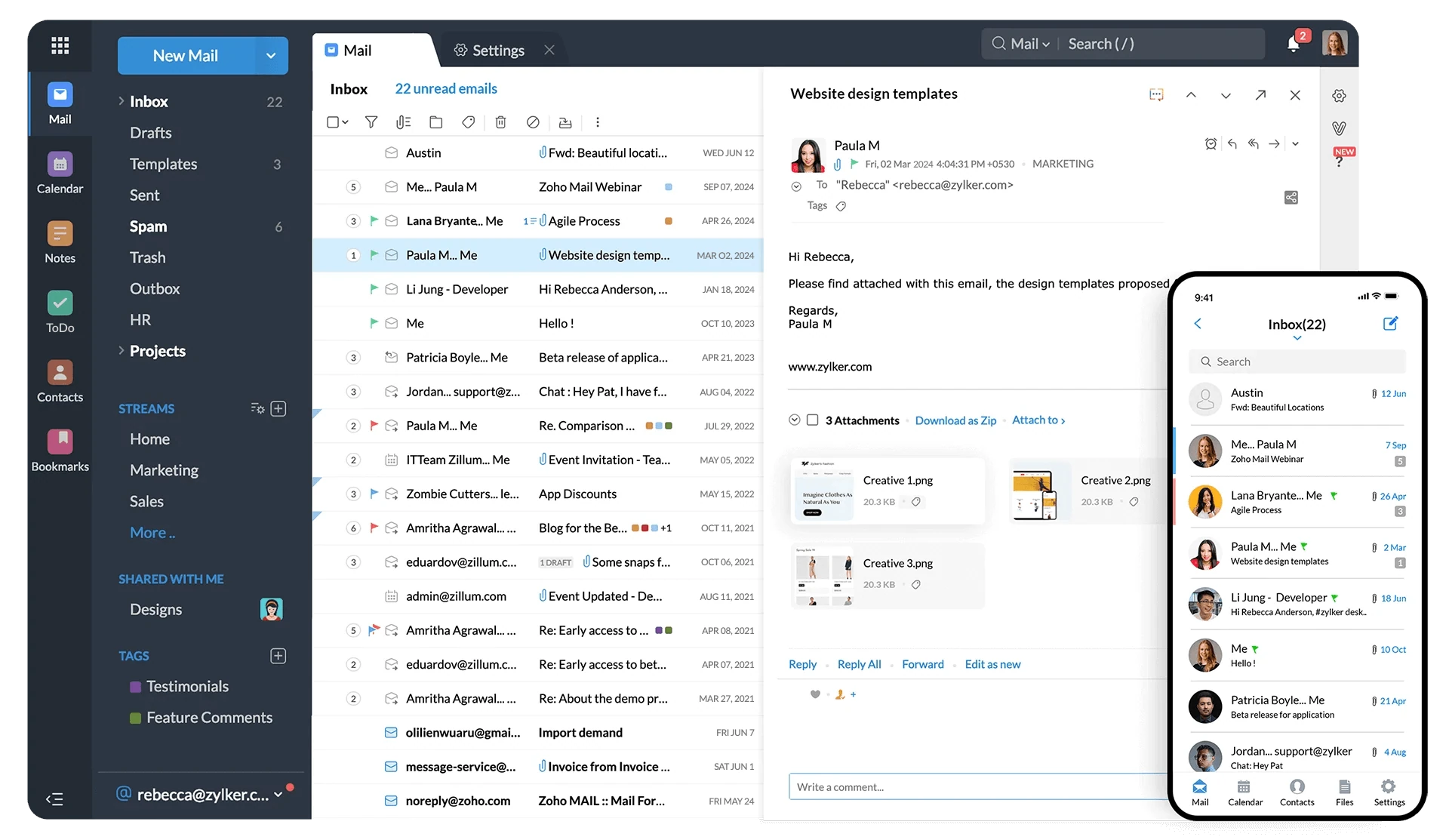
1.1 A distraction-free inbox
Your Zoho Mail inbox has no advertisements, so you can focus on your emails and tasks.
1.2 Conversation view
Zoho Mail groups replies into a single conversation thread, with the newest email at the top. This keeps your inbox tidy and gives you the full context of longer discussions. To see emails one by one instead, turn off conversation view in the settings.
1.3 Zoho Mail on your phone
Zoho Mail has apps for iOS and Android:
- Unified inbox: manage all your Zoho accounts from one inbox, with push notifications for each.
- Swipe actions: delete, move or archive messages with a swipe.
- Calendar, contacts and files: the app includes these as well as email.
- Attachment viewer: view attachments as thumbnails, like your phone's photo gallery.
- Search: find emails with criteria-based search fields.
- Offline access: browse, write and reply to emails without an internet connection.
- Apple Pencil and 3D Touch (iOS): write messages by hand with Scribble, or use 3D Touch to preview emails and open quick actions (Compose, Add Event or Contact, Search).
- Apple Watch: see the sender and subject of new emails, read snippets and reply by voice.
- Landscape view: on iPhone, iPad and Android tablets.
2. Customise Zoho Mail
You can personalise Zoho Mail in the web interface and in the Trident desktop app.
2.1 Themes
In Trident, choose a light, dark or system theme and an accent colour. In the web interface, you can change the theme and organise emails into folders and labels.
2.2 Mail view options
- Email listing view: choose Classic View or Compact View.
- Open message in: open an email in a preview, a new tab or a new window.
- Show message with: show only the subject, or the subject and a summary, in the email list.
- Conversation view: turn on to group emails into threads, or off to see them one by one.
3. Organise your mailbox with filters, tags and folders
3.1 Create a filter
Filters act on incoming emails automatically. They can move emails to folders, apply tags, mark emails as read, forward them and more.
- Log in to Zoho Mail.
- Click the Settings icon (the gear).
- Go to Filters and select New Filter.
- In the Create Filter dialog, enter a name for the filter.
- Set the conditions an email must meet, for example From, Subject, or contains specific words.
- Choose the action, for example Move to Folder, Apply Tag, Mark as Read or Forward to.
- Click Save.
Emails that match the conditions are processed automatically.
3.2 Tag emails
Tags give emails a coloured label. You can use them alongside folders and apply several tags to one email.
- Click the plus icon (+) next to Tags in the left pane, and create a tag with a name and colour.
- Select the emails using the tick boxes next to them.
- Click the Tag as icon at the top of the list.
- Choose the tag from the drop-down. You can also create a new tag here.
To flag an important email, hover over it in the list and click the flag icon. Flagged emails appear under Flagged in the left pane.
3.3 Organise emails into folders
- Click the plus icon (+) next to Folders in the left pane, and name the new folder.
- Select the emails you want to move using the tick boxes next to them.
- Click the Move to icon at the top of the list.
- Choose the folder from the drop-down. You can also create a new folder here.
3.4 Search your email
Zoho Mail search covers all your Mail apps, including Notes and Tasks. Combine criteria to narrow the results.
- Criteria: From, To/CC, In folder, Tag, Contains (words in the content), Subject, Attachment name and more.
- Search history: reuse earlier combinations of search criteria.
- Settings search: find a specific section in Settings quickly.
4. Write and send email
4.1 Write a new email
- Log in to Zoho Mail.
- Click New Mail in the left pane. The composer opens.
- Enter the recipients in the To, CC and BCC fields. Addresses fill in from your contacts.
- Add a clear subject.
- Write your email. Use the formatting options for bold, italics, underline, fonts, alignment, lists, links and images.
- Click Send.
The email is sent and saved in your Sent folder.
4.2 Use email templates
Templates save time on emails you send often, such as follow-ups, client updates or internal announcements, and keep the wording consistent.
To create a template, save your draft email as a template.
To use a template, click Insert Template in a new message.
Note: Zoho plans to add AI-generated email content. To use AI features, your organisation needs AI turned on with an OpenAI platform API key.
4.3 Set an out-of-office reply
When you're away, set an automatic reply to let senders know. In the Trident desktop app, this works across all your linked email accounts.
- Log in to Zoho Mail.
- Click the Settings icon.
- Go to Out of Office.
- Set the start and end of the period, and the conditions for sending the reply.
You can set one message for colleagues inside your organisation and a different one for everyone else.
4.4 Manage email signatures
You can create several signatures and link them to different email addresses or aliases. Signatures can include formatted text and images, such as your company logo.
- Log in to Zoho Mail.
- Click the Settings icon.
- Go to Signatures and click the + icon.
- Enter and format your signature, then click Save.
Note: In some organisations the administrator controls signatures. Your name, email, logo and contact details then come from records such as Zoho Directory and Zoho People, and you can't create your own signature.
4.5 Outbox delay
Outbox delay holds an email for a short time after you click Send, so you can catch mistakes before it goes. The email waits in your Outbox folder during the delay.
- Log in to Zoho Mail.
- Click the Settings icon.
- Go to Mail > Compose.
- In the Outbox Delay section, tick the box and set a delay between 1 and 120 minutes.
4.6 SecurePass for confidential emails
Use SecurePass for confidential emails, such as pay slips, client details or contracts. While writing the email, apply SecurePass and set an expiry date. The recipient needs a one-time password (OTP), sent by email, to open it. You can also stop forwarding and printing. After the expiry date, the email can't be opened.
4.7 Read receipts
A read receipt confirms that someone has opened your email. To choose how you respond when someone asks you for a read receipt:
- Log in to Zoho Mail.
- Click the Settings icon.
- Go to Mail View Options.
- Find Read Receipt and select one of these options:
- Always Send: always send a read receipt to the sender.
- Never Send: never send a read receipt.
- Ask me: ask you each time before sending a read receipt.
5. Calendar and meetings
Zoho Mail includes a Calendar for events and meetings. The Trident desktop app adds a unified calendar.
5.1 Calendar features
Create events, view and edit their details, and set reminders in the Calendar.
- Unified calendar: see events from several calendars in one place, and show your colleagues' schedules and other time zones.
- Invitations from email: add an event from an invitation you received by email with one click.
- Appointment scheduling: share an appointment request form so others can request a time to meet you.
5.2 Calendar invitations with online meetings
- Meeting platforms: create or join meetings in Zoho Meeting, Microsoft Teams or Zoom. The meeting link is added to your invitation automatically.
- Screen sharing and annotation: host audio and video meetings with screen sharing. In Trident, you can annotate while you share your screen.
- Meeting recordings: record meetings for people who can't attend.
- Resource booking: Mail Premium and Workplace Standard or Professional users can find and book shared resources, such as meeting rooms.
6. Productivity tools
Zoho Mail includes Tasks, Notes and Bookmarks. Trident brings these together in one app.
6.1 Tasks
- Personal and group tasks: assign tasks to yourself or anyone on your team.
- Subtasks: split larger tasks into smaller ones.
- Reminders: get reminders and notifications for upcoming tasks and due dates.
- Board view (Kanban): track task progress visually to spot bottlenecks.
- Add mail as task: turn an email into a task.
6.2 Notes
Keep ideas and notes in one place, with images and attachments.
- Formatted notes: format notes as in a word processor.
- Group notes: create group notes or share notes with colleagues.
- Sticky notes: make a note sticky so it shows when you open your mailbox.
- Add mail as note: turn an email into a note.
Note: Notes in Zoho Mail aren't the same as Zoho Notebook. If you have Zoho One or Zoho Workplace, Zoho Notebook may suit you better.
6.3 Bookmarks
Save important web pages as bookmarks in your mailbox. Bookmarks can be personal or shared with people, groups or the whole organisation. They aren't tied to a browser or browser profile. Install the Zoho Mail Bookmark extension in a supported browser to save pages to Zoho Mail quickly.
7. Extensions and integrations
Zoho Mail connects with other Zoho apps and third-party tools, so you can work across apps without leaving your inbox.
7.1 Zoho CRM
- Leads and contacts: create and manage Zoho CRM leads and contacts from your mailbox.
- Context: see details about a contact and their deals from your inbox.
- Email history: emails with clients are logged on their records in Zoho CRM.
- Automation: send emails automatically based on actions in CRM.

7.2 Zoho WorkDrive
Zoho WorkDrive is Zoho's cloud file storage and collaboration app.
- Files in your mailbox: add, open and share WorkDrive files and attachments from your mailbox.
- Storage features: secure storage, real-time editing, version control and secure sharing.
- Smart Flow (Trident): drag and drop files between email attachments and WorkDrive folders, share WorkDrive files into Cliq chats, or give teammates access to files.
- Real-time editing (Trident): edit together without version conflicts.
To connect WorkDrive to Trident:
- In Trident, go to Settings.
- Go to Integrations and turn on WorkDrive.
- Alternatively, click the Widgets icon in the top right of Trident's main window and select Add Widget to add WorkDrive.
7.3 Other integrations
- Accounting and finance: Zoho Books, Zoho Inventory, Zoho Invoice, Zoho Expense.
- Automation: Zapier, Microsoft Power Automate, Make.
- Collaboration: Slack, Webex, Giphy.
- Customer support: Zoho Desk, Salesforce, Zendesk.
- E-signature: Zoho Sign, Adobe Sign, DocuSign.
- Meetings and calendar: Zoom, Google Calendar, Zoho Meeting.
- Project management: Zoho Projects, Trello, Jira, Asana.
- Productivity: Zia (AI assistant), Mail Merge, Zoho Notebook.
8. Sharing and delegation
8.1 Share emails and folders
Share single emails, or whole custom folders, with users or groups in your organisation.
To share an email:
- Open the email.
- Select the Share option in the email's menu or toolbar.
- Select the users or groups in your organisation to share it with.
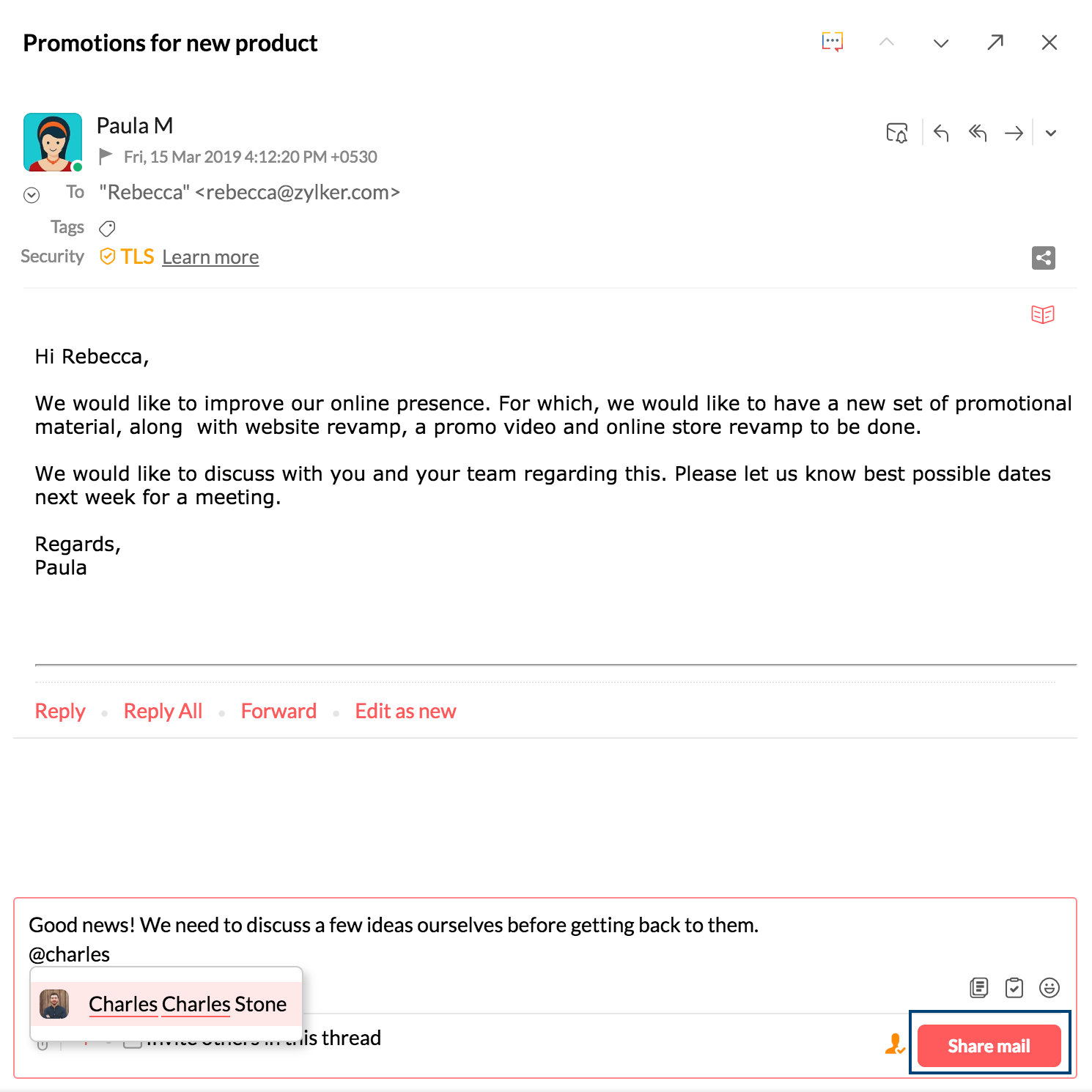
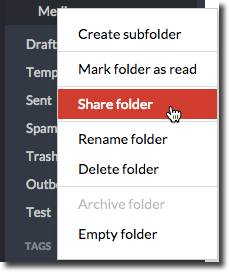
To share a folder:
- In the left pane, right-click the custom folder.
- Select Share Folder.
- Choose the people to share it with and set their access, for example read-only, read/write or delegate access.
8.2 Mailbox delegation
Delegation lets a user work on behalf of another user. For example, a personal assistant can read and reply to emails for the CEO.
- Decide which folders to delegate, for example the inbox or project folders.
- Share them using the folder-sharing steps above, and give your delegate the right access.
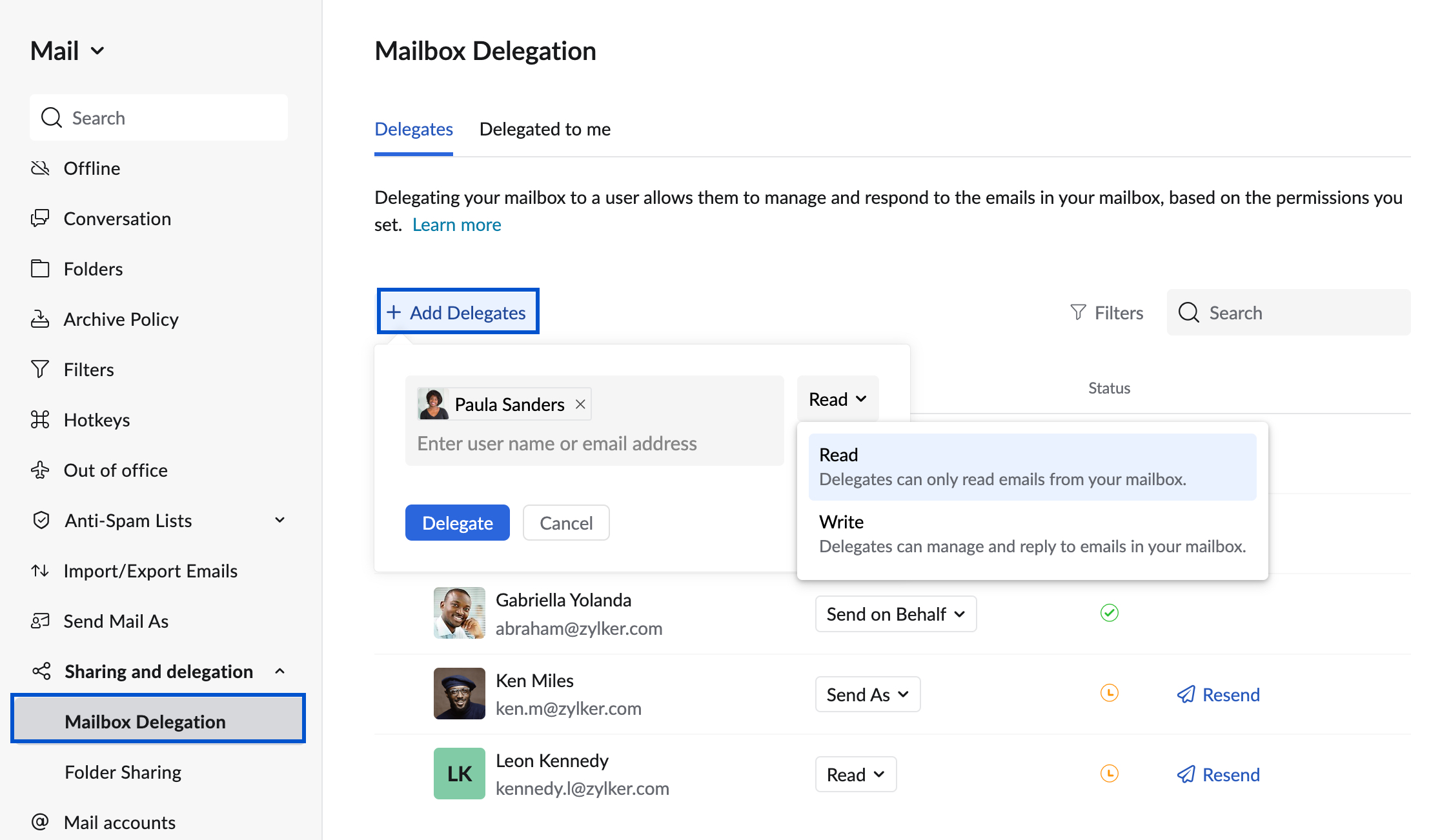
Write delegation has two options: Send on Behalf and Send As.
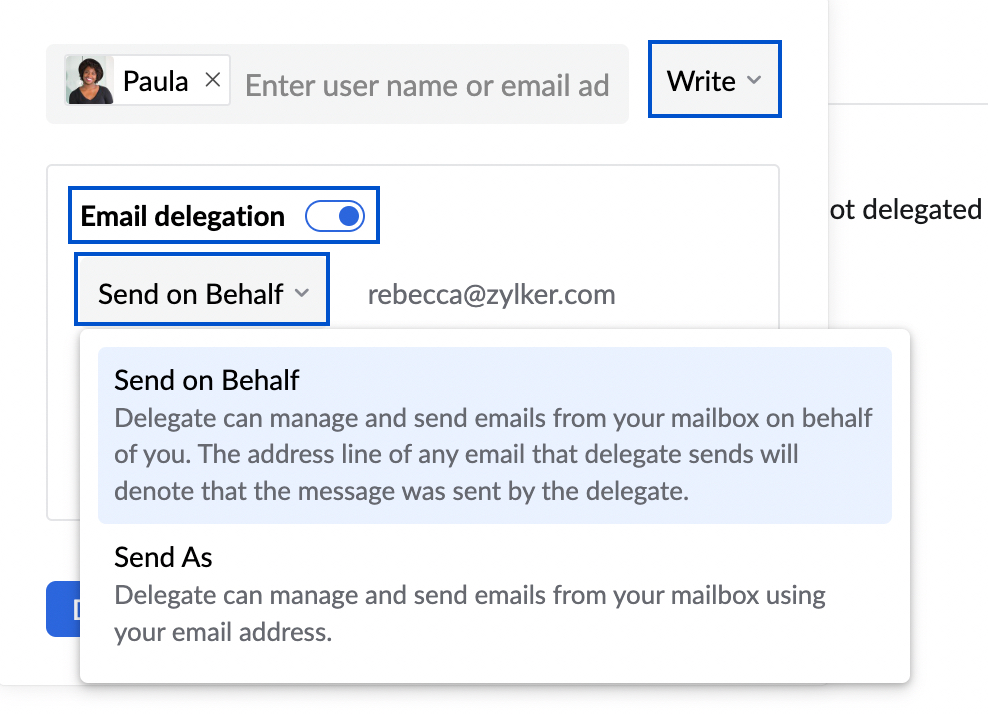
- Send on Behalf: recipients see that the email was sent by the delegate on behalf of the owner, for example "PA on behalf of CEO".
- Send As: the email always comes from the owner of the delegated mailbox, whoever sent it.
For how to switch between your own mailbox and a delegated one, see Switching between your own and a delegated mailbox in Zoho Mail.